
Back in 2010, I posted here about booting an Apple IIgs connected via LocalTalk from a Linux server running netatalk. This was that time before the popular Raspberry Pi boards were made commercially available and we were still tinkering with Arduino microcontrollers.
Prior to that, I have been able to netboot an Apple IIgs from a classic Mac running AppleShare (2.x or 3.x) with its Apple II networking support. This was all through LocalTalk network cables. The setup process involved enabling the Apple II support on the server, booting an Apple IIgs from 3.5” diskette with AppleTalk drivers, and then installing Apple IIgs files over the network to the server. Once the setup is completed, the Apple IIgs would not need a disk drive anymore and can directly boot from the server.
I wanted to do this with a server machine that takes up less physical space. From the old comp.sys.apple2 newsgroups, I learned about the netatalk package that can be installed in a Linux machine. It offered the same services and is in active development. netatalk was at version 2.x at that time. In 2010, many NAS-like devices appeared on the market. These were small ARM-powered single-board computers with an Ethernet port and running some form of Debian distribution of Linux. I was customizing the Linux installation on this tiny Seagate Dockstar – attaching peripherals to its USB ports, including keyboard, mouse, and even a small USB display device. It had enough storage to install a few more packages, and I played with compiling and installing netatalk on it. Along with a small LocalTalk-Ethernet bridge device, I was able to netboot an Apple IIgs. Many Linux distributions, up to today, enables the DDP network layer protocol on top of Ethernet.
Fast-forward to 2026, netatalk is at version 4.x with more features, and there are numerous tiny single-board computers. I was encouraged to see how I could do the same with netatalk installed on a Raspberry Pi. I used a spare Raspberry Pi 4 for this.
netatalk
The good news is that the netatalk features I needed back in 2010 are included in the binary distribution and I now don’t need to build netatalk from source code. I performed a clean Raspberry Pi OS installation using the stable distribution (Debian “trixie” that was made available for the Raspberry Pi OS in December 2025). In the following steps and screenshots, “peter” is my Raspberry Pi OS user name. The only extra package I installed is netatalk with:
sudo apt install netatalk
After installation, I edited my /etc/netatalk/atalkd.conf file to include the following:
eth0 -router -phase 2 -net 0-65534 –zone "Default"
I didn’t assign an AppleTalk node address so that it could just use an assigned address in case a seed node is somewhere in the network. If a seed node is not found in the network, it will just be assigned an address and the file will be updated accordingly.
To define the volumes visible to AppleTalk clients, my /etc/netatalk/afp.conf file includes the following (explained further below):
[global]
appletalk = yes
uam list = uams_randnum.so uams_clrtxt.so uams_guest.so
[apple2]
volume name = Apple II Files
path = /home/$u/afp-data/apple2
prodos = yes
[A2BOOT]
casefold = toupper
volume name = A2BOOT
path = /home/$u/afp-data/A2BOOT
prodos = yes
I only used the UAM (authentication) protocols recognized by the Apple IIgs. There are better and more secure protocols used by other AppleTalk clients, like those used in classic Macs, that can be added here.
One of the differences from netatalk version 2.x is that per-user volume configuration is not available anymore. In version 2.x, an ~/AppleVolumes file in your home directory enumerates an additional list of volumes that are visible to the AppleTalk client once the user has logged in. In version 4.x, we use the $u placeholder in the path as a convention for mounting per-user volumes (which are directories in the Linux file system). If you prefer not to use per-user volumes, you can always provide absolute directory paths in the configuration. I see that you can configure a lot more things in version 4.x, including ACLs and read-only vs read-write access for users.
The volume to be used to netboot an Apple IIgs has to be the last entry in /etc/netatalk/afp.conf. I think this is a bug in netatalk since it presents the list of volumes to the AppleTalk client in reverse order listed in the afp.conf file. The Apple IIgs can only netboot from the first volume in the list presented to the user. Additionally, the casefold configuration for the volume has to be set to toupper because somewhere in the netboot code is retrieval of some file specified in upper-case (I think it’s either /SYSTEM/START or /SYSTEM/START.GS.OS which is different from how they are distributed as /System/Start or /System/Start.GS.OS)
Note that for authentication, the Apple IIgs client limits the password to 8 characters. So for clrtxt authentication which checks against your netatalk machine authentication, your Linux password has to be within that length limit.
In 2010, neither the randnum UAM nor the a2boot daemon were included in the netatalk package, but they are now part of the version 4.x distribution. For randnum authentication, follow the instructions for the afppasswd command to set the user password, differently from the user password in the Linux system.
To install the boot blocks needed for netbooting from netatalk, use the same three files I made available here and extract them to the /etc/netatalk/a2boot directory. These files were not freely available and were themselves just extracted from the AppleShare 3.0.1 Mac installation disks https://macintoshgarden.org/apps/appleshare-30.
Bridge Hardware
The hardware device that I used to bridge LocalTalk to Ethernet is a Dayna Mini EtherPrint. There were other devices I tested back in 2010, including the small manta-ray-shaped Farallon EtherWave devices, some Asante-branded devices, and full routers like the Cayman GatorBox or Kinetics FastPath.
The less expensive devices like the EtherPrint were used differently back in the day. They were used to attach LocalTalk-connected printer devices to an Ethernet network, and classic Macs connected to Ethernet are able to send print jobs to the LocalTalk printers. Here, we are using the device to attach an Apple IIgs client to the Ethernet network and talk to servers using AppleTalk protocols.
Apple IIgs
On the Apple IIgs side, we first need to install system software into the remote volume that will be used for netbooting.
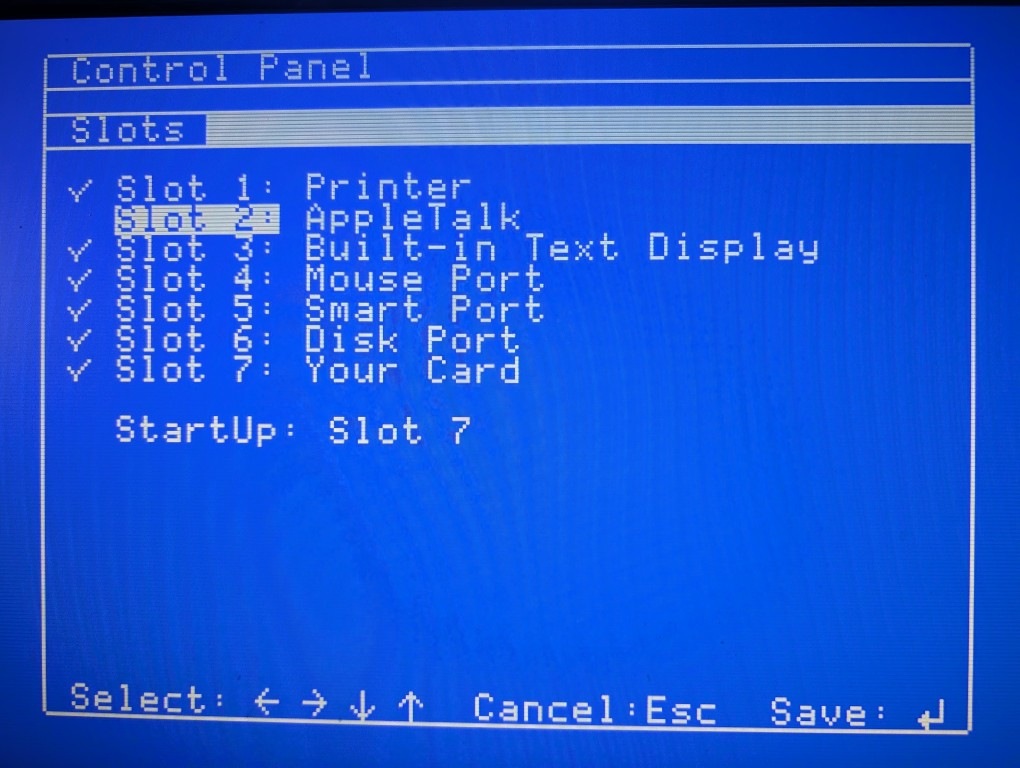
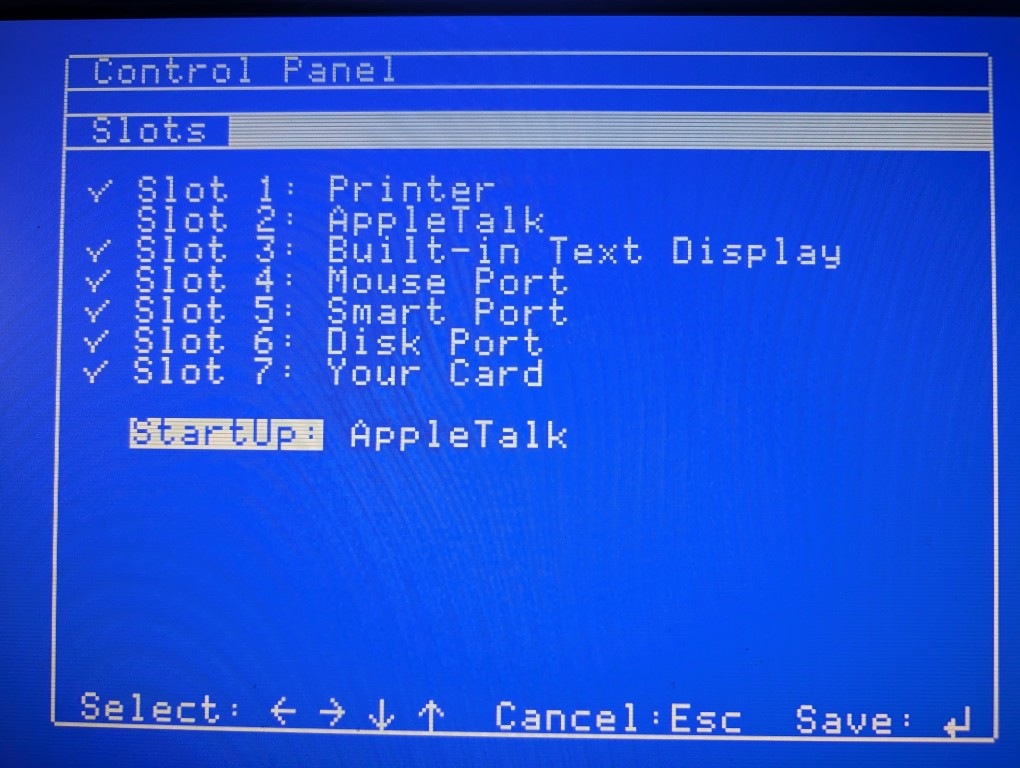
Make sure you set the Slots configuration in the Apple IIgs Control Panel to use AppleTalk so that it can communicate with netatalk. With a ROM3 machine, I think you can choose either Slot 1 or Slot 2 to use AppleTalk.
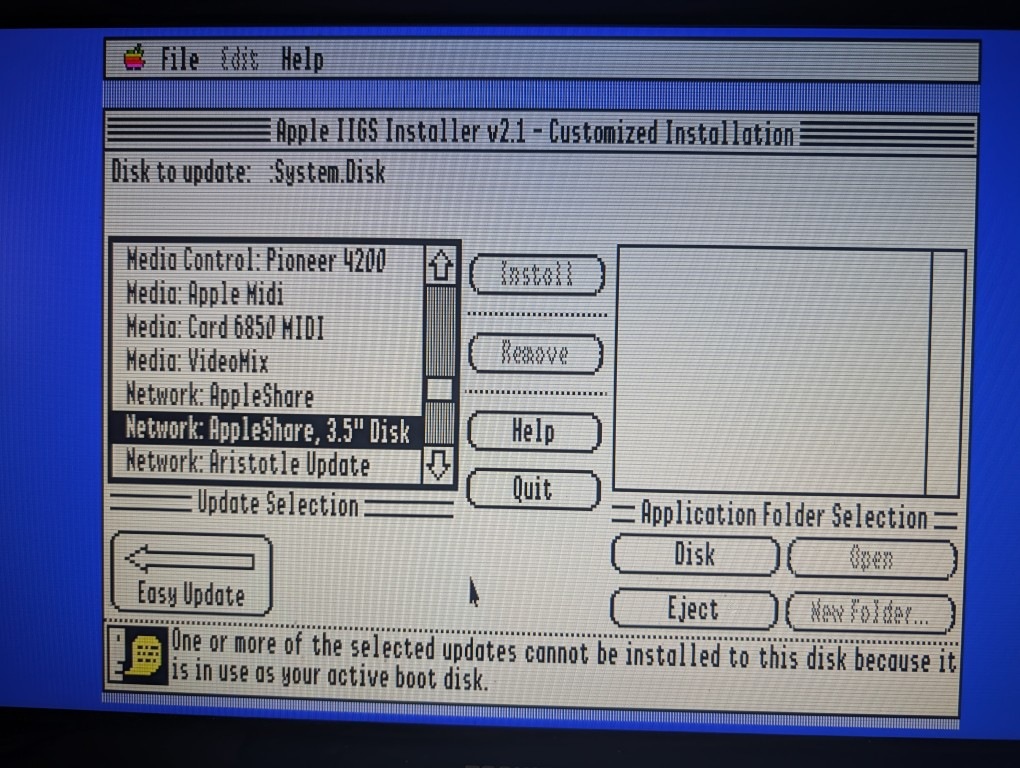
We can start from scratch with a fresh set of System 6.0.1 (or later) installation disks and an external 3.5” drive or modern drive emulator equivalent. The default bootable System disk does not load the AppleShare drivers. You can run the Installer program from the Install disk and choose the “Network: AppleShare, 3.5″ Disk” to create a new bootable 3.5” disk that has the AppleShare drivers. Boot from that new disk, and use the Control Panel, which only has the AppleShare CDEV, to log in and attach the netatalk A2BOOT volume.
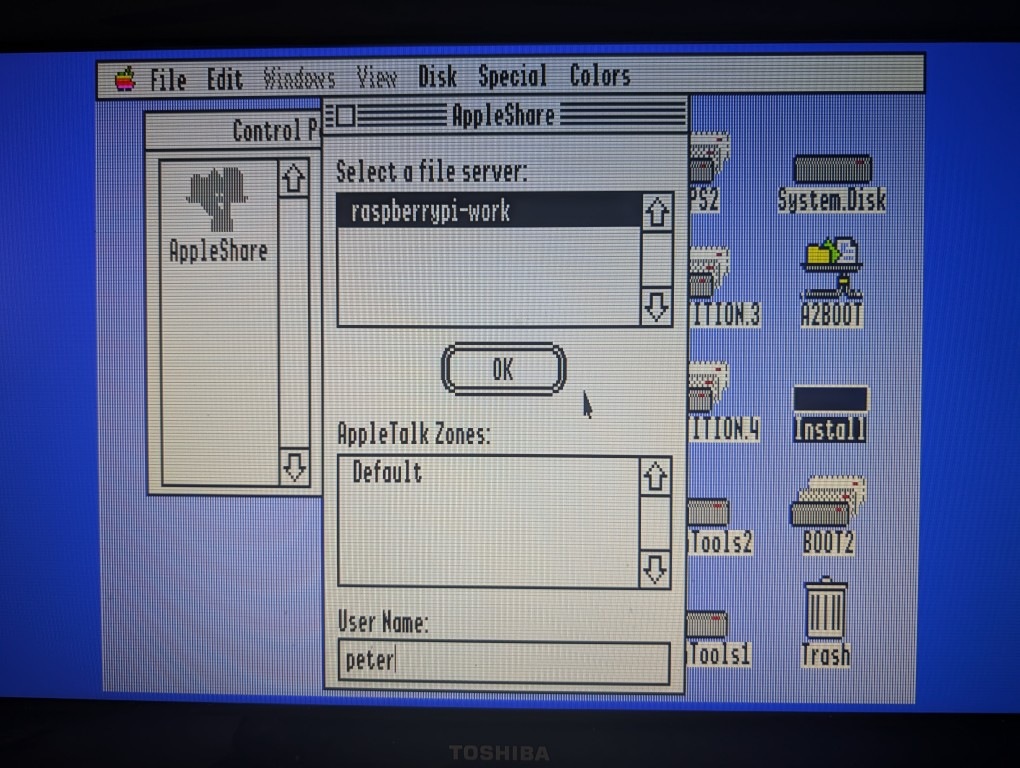
Here’s the gotcha with the default AppleShare CDEV — there is a bug in the AppleShare CDEV from System 6.0.1 (but has been patched in later versions) where the password sent for clrtxt authentication has the byte order swapped and will fail to log in to netatalk. There is this well-known Marsha Jackson’s patched AppleShare CDEV that fixes the bug, and you will need to somehow replace the AppleShare CDEV in the boot disk. However, you won’t need this patch if you configured netatalk to allow randnum authentication. If you still want to stay with clrtxt authentication, I made available images of these boot disks with the patched AppleShare CDEV for ROM1 and ROM3 machines, here and here respectively.
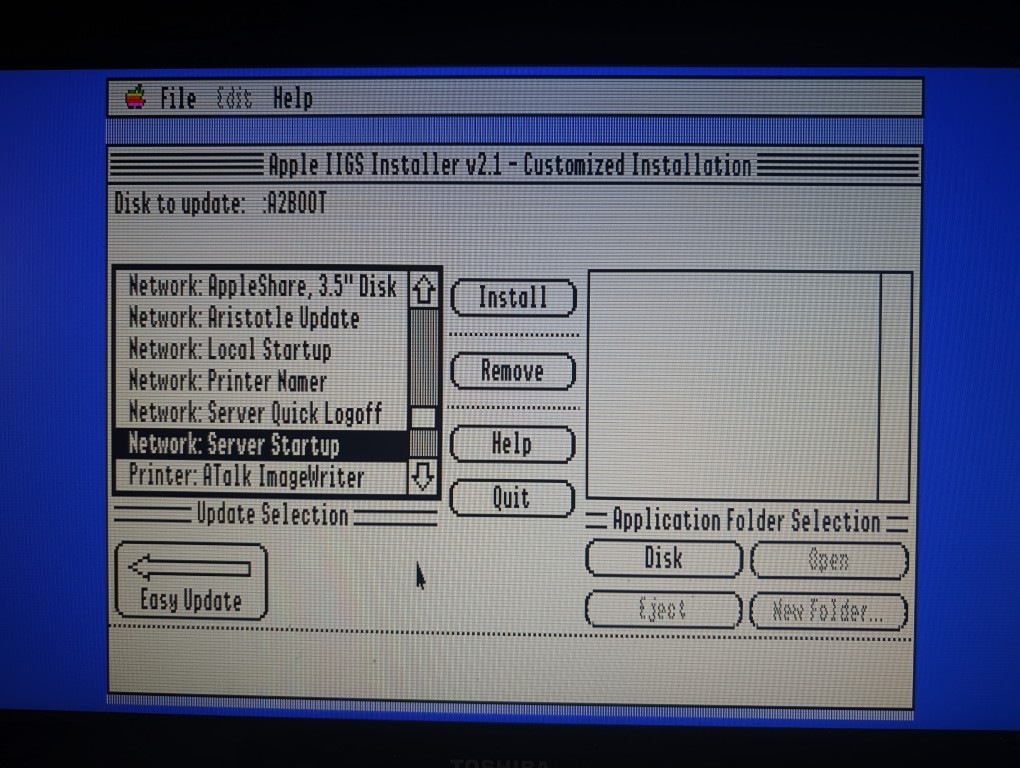
Once you have attached to the netatalk A2BOOT volume, run the Installer program from the Install disk and choose “Network Server Startup” targeting the remote A2BOOT volume as the destination disk. It will ask for and copy files from the Install, SystemTools1, and SystemTools2 disks. The files will appear within the A2BOOT folder in the Linux file system, with resource forks appearing as separate AppleDouble files.
Here’s another bug related to the AppleShare CDEV bug — the /SYSTEM/START file copied over to the A2BOOT volume exhibits the same bug. If you still want to keep using clrtxt authentication, you must extract the START file from here and replace that file in the A2BOOT volume. I would just recommend using randnum authentication to avoid all these mundane patches.
An additional file needed during netbooting is the user’s ATINIT file. This informs GS/OS what startup program to launch. I’ve provided an example ATINIT file that simply launches the GS/OS Finder application located in the System folder of the A2BOOT volume. You can edit this file using a binary file utility and change the startup application and the startup prefix. Note the string length value on the byte preceding the actual strings. The Apple IIgs Technical Note #77 describes the ATINIT file format.
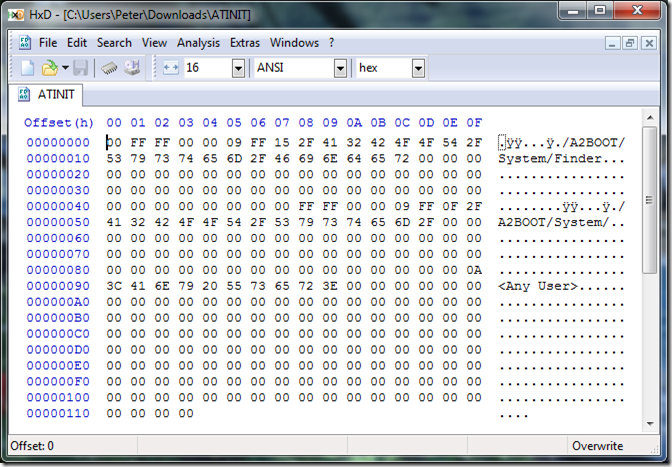
For example, using the A2BOOT volume for the user “peter”, I create the /USERS/PETER/SETUP directory in the A2BOOT volume and place the file in that directory. Note the directory name corresponding to the user name. You can place the file from either within Linux or from within the GS/OS mounted volume (from booting the AppleShare boot disk on the Apple IIgs). In the Linux system, the full directory path could be like /home/peter/afp-data/A2BOOT/USERS/PETER/SETUP.
The need for the ATINIT file is because of the AppleTalk-specific /SYSTEM/START boot application that gets installed with the Network Server Startup installation. If you don’t want to bother with the ATINIT stuff, merely copy a valid application over the /SYSTEM/START boot application. An example is replacing the /SYSTEM/START file with a copy of the Finder application. Another example is replacing the /SYSTEM/START file with the “Start” boot application found in the System 6.0.1 Installer disk, which consults the SetStart setting in the control panel for the boot application to chain to.
Netboot
That is all there is to setting things up.
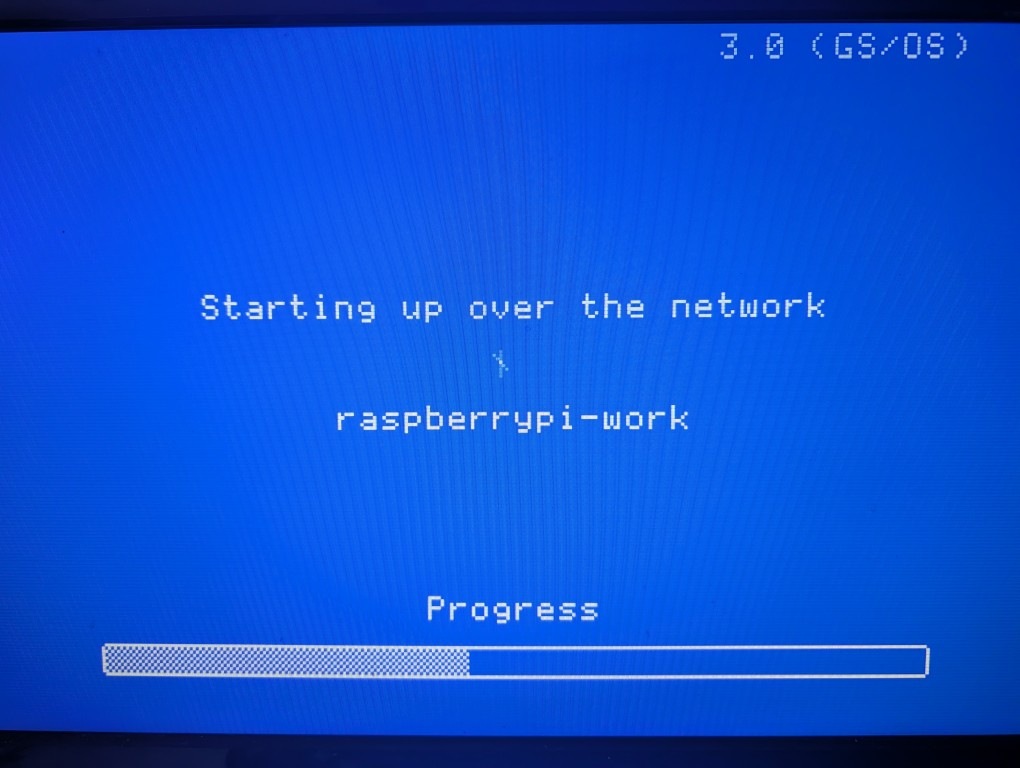
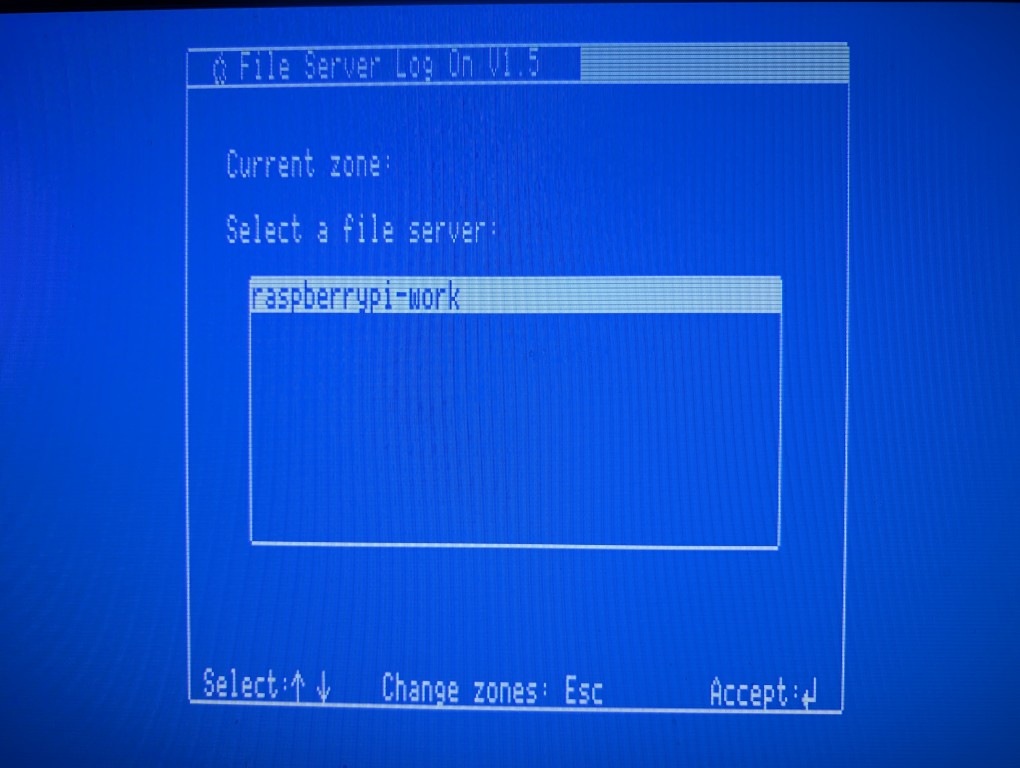
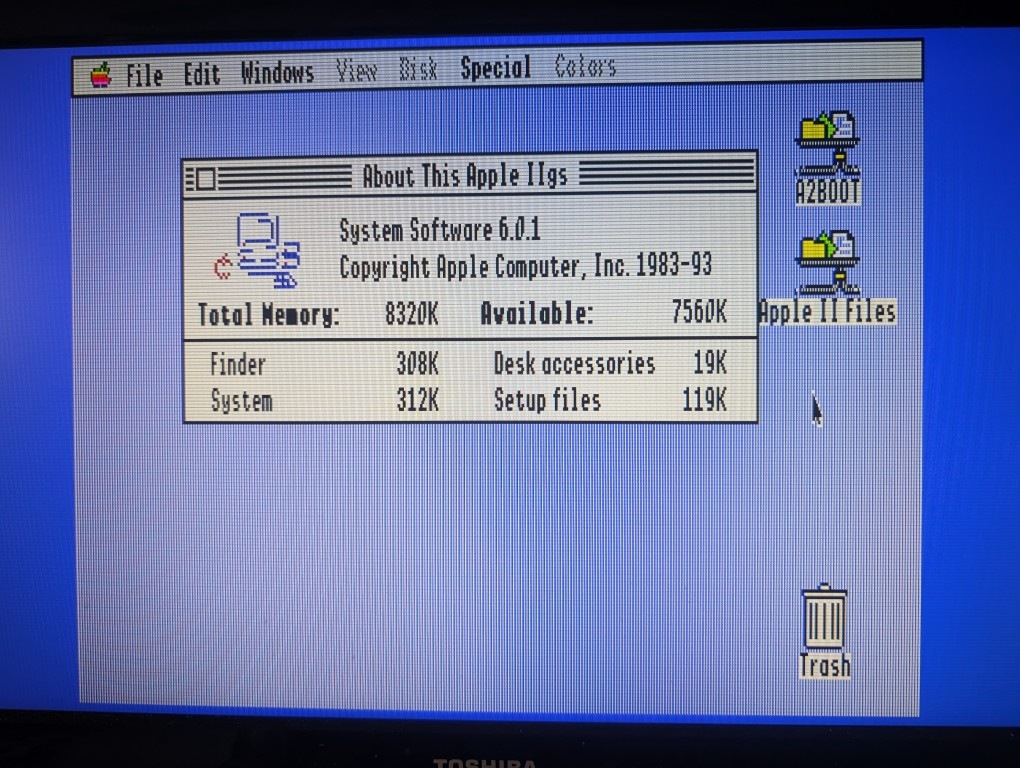
After the files are copied, you can eventually disconnect the 3.5” drive, and change the boot configuration in the Apple IIgs Control Panel to boot from AppleTalk. When the system boots up, it would start the boot process by first loading the boot blocks from netatalk’s a2boot subsystem, and then present an AppleShare login page. Select the remote boot volume, and continue the boot process from there all the way to the GS/OS desktop environment.
Bonus: Alternate Apple IIgs Setup
If you are like me where I took a long time looking for my 3.5” drive in storage, I offer an alternative way of setting up the boot system using a SCSI card and a SCSI emulator like BlueSCSIv2 or others.
I created the four floppy disk images in my SCSI device emulator, three of them being from the original System 6.0.1 disks. The boot disk is the new AppleShare-enabled boot disk created from what I described above, with some files replaced. I needed to add the /System/Drivers/SCSI.Manager and /System/Drivers/SCSIHD.Driver files. To make space available, I had to remove the /BASIC.System and /System/P8 files. I named this boot disk as FD60_AS_ROM3.po and placed it on my BlueSCSIv2 file system.
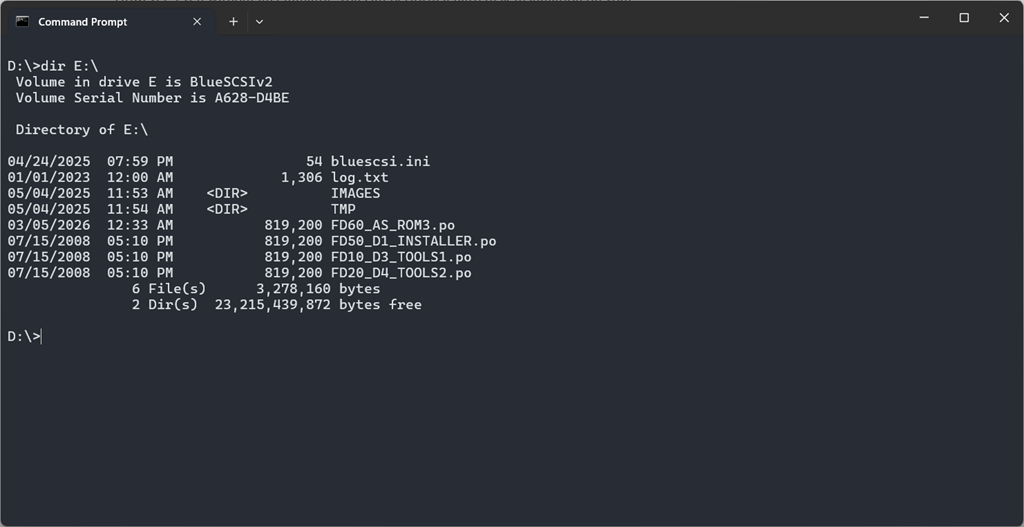
The system will boot from the emulated device with the highest SCSI ID, so I name the boot disk as FD60_xxxx (SCSI ID 6). This goes through the same process of copying the files over to the remote A2BOOT volume and you won’t need to swap disks in your 3.5” drive because the other three disk images are already available on different SCSI IDs.
Bonus: Files
Archive (in tar.gz format) of the A2BOOT volume from my Raspberry Pi, if you prefer a more turnkey approach to setting up the remote boot volume, instead of running setup from the Apple IIgs side: https://peterwong.net/files/apple2/A2BOOT.tar.gz
Disk image of AppleShare-enabled boot disks for ROM1 and ROM3, without the AppleShare CDEV patch, but contains the /System/Drivers/SCSI.Manager and /System/Drivers/SCSIHD.Driver files for use as a disk image in BlueSCSIv2:
https://peterwong.net/files/apple2/AppleShare.IIgs.ROM1.po
https://peterwong.net/files/apple2/AppleShare.IIgs.ROM3.po